
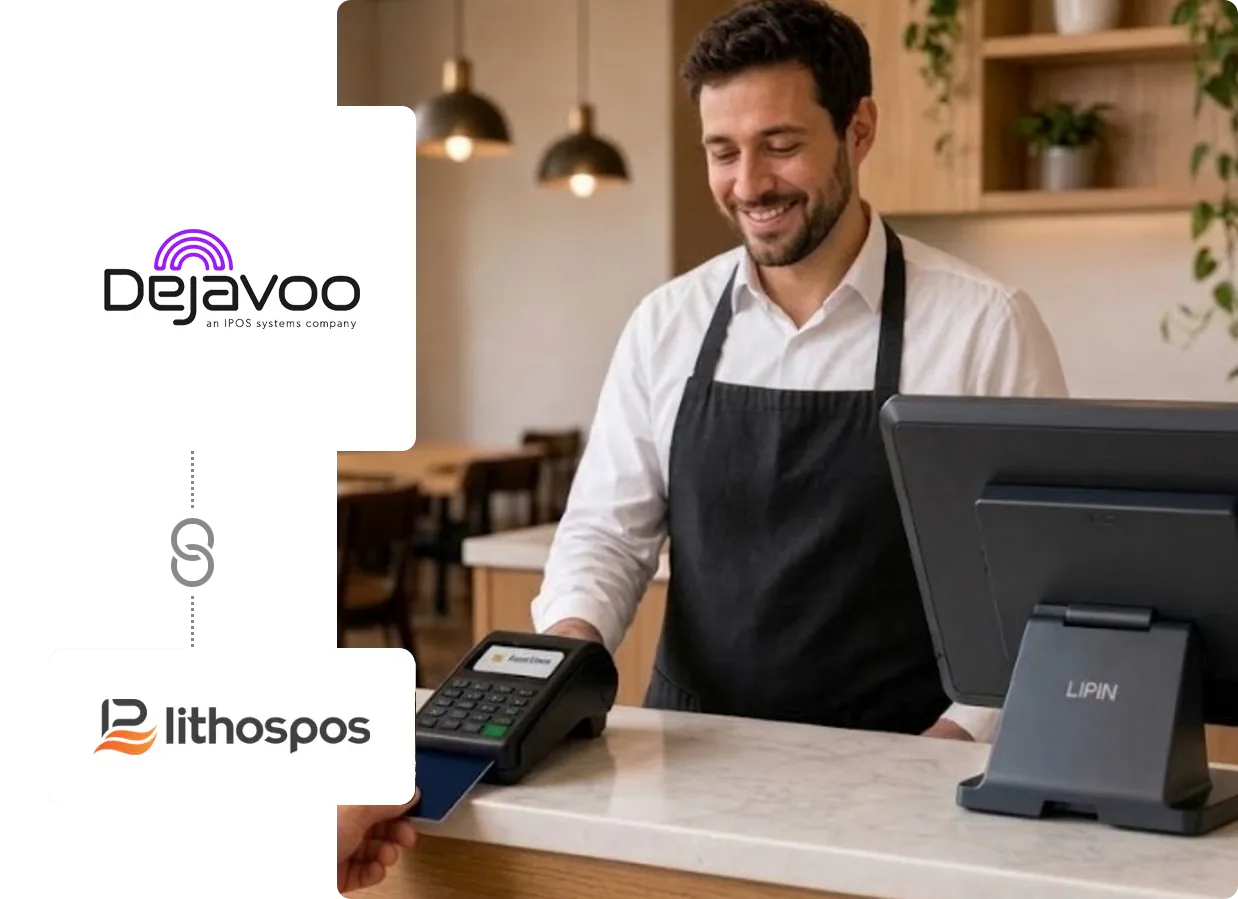

How a payment runs
The Bill Starts in LithosPOS and Ends Back There
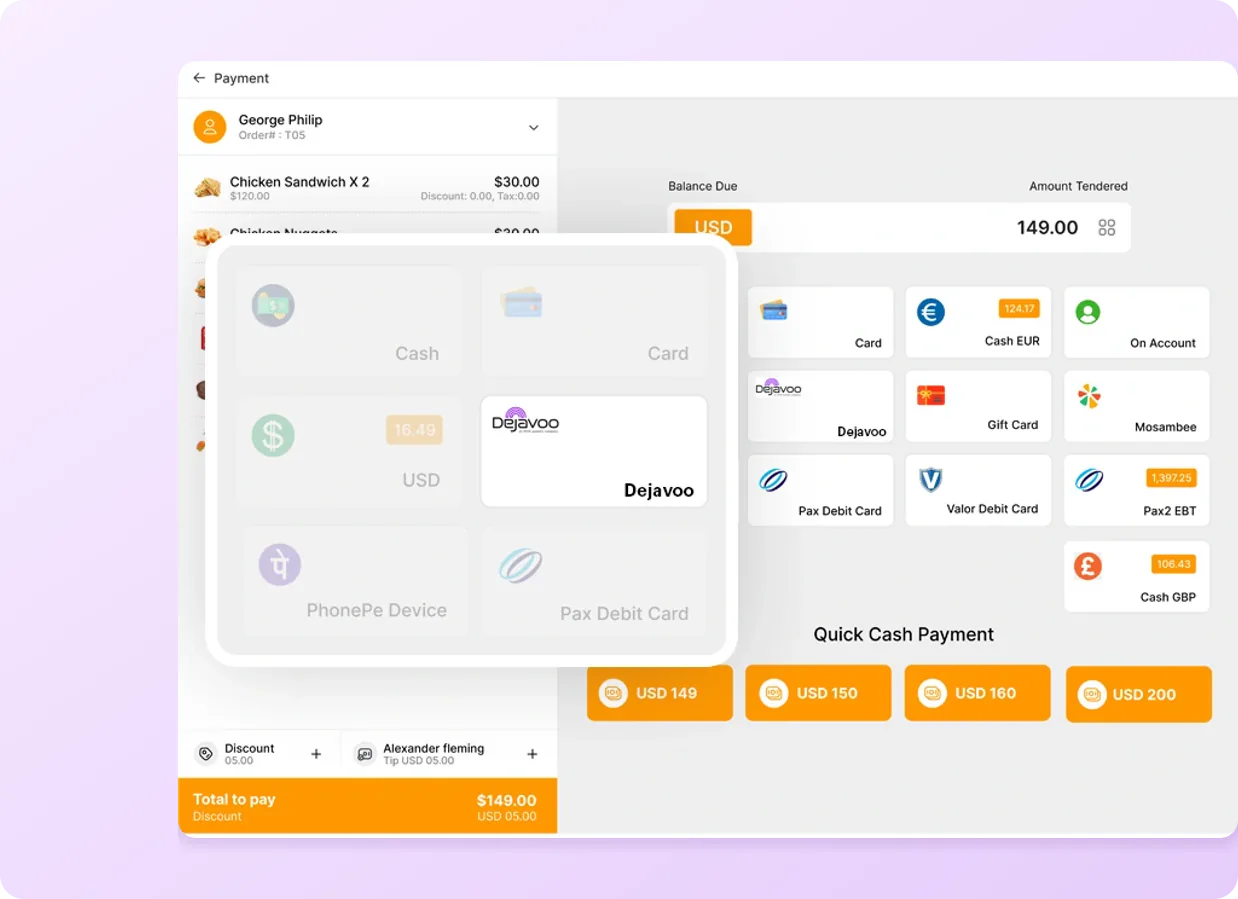
Dejavoo sits on the LithosPOS payment screen as a debit card and a credit card option, so a card payment follows the same checkout as every other way to pay.
Ring up the sale
Add the items to the cart and go to the payment screen.
Pick Dejavoo debit or credit
Choose the Dejavoo card option that matches how the customer is paying.
Customer pays on the terminal
The amount due comes across from the bill, so nobody keys it in a second time.
Result in LithosPOS
The payment status shows in LithosPOS, and the receipt prints from either the POS or the Dejavoo terminal.
Integration methods
Two Ways to Connect: App to App or Cloud
The difference is where LithosPOS runs and how each payment request reaches the terminal. You pick the method when you add Dejavoo as a payment type in the LithosPOS Back Office, then sync it to the POS.


LithosPOS on the terminal
P2P (App to App)
LithosPOS runs on the Dejavoo terminal and hands each payment to the Dejavoo payment app on the same device. Once the customer has paid, you’re taken back to LithosPOS.
To connect: the terminal’s TPN number, entered on the POS or found with the search option.
Progress and result shown on the POS
POS and terminal apart
Cloud
LithosPOS sends each payment request through the cloud to your Dejavoo terminal, and the POS screen follows the payment’s progress while the customer pays at the terminal.
To connect: the terminal’s TPN number, Register ID and Auth Key, entered on the POS.
After the sale
Corrections, Tips and Day‑End Start from LithosPOS
Each operation runs through the method you’ve set up, in the Dejavoo app for App to App or on the terminal through the cloud, and the result comes back to LithosPOS.
When a sale needs undoing
A wrong order at the café counter or a return at the retail till
Void a sale
Void an eligible Dejavoo sale from its sale details in LithosPOS, with a note on why if you need one.
Refund to the card
Put the sale into refund mode, pick the items coming back and refund them through Dejavoo debit or credit card.
When the final amount comes later
Restaurant tables, open tabs and service tips
Preauthorize, then capture
Save a preauthorized order to a table, then open it from the Orders screen when the guest is ready and capture the payment.
Credit card tip adjustment
Add a tip to a Dejavoo credit card sale as an amount or a percentage. Tips can’t be adjusted on debit cards or other transaction types.
When the day is done
Every store that takes Dejavoo payments
Batch settlement
Closing the day and the register in LithosPOS settles the Dejavoo batch as well, and the settlement receipt can be printed for your records.