

How it works
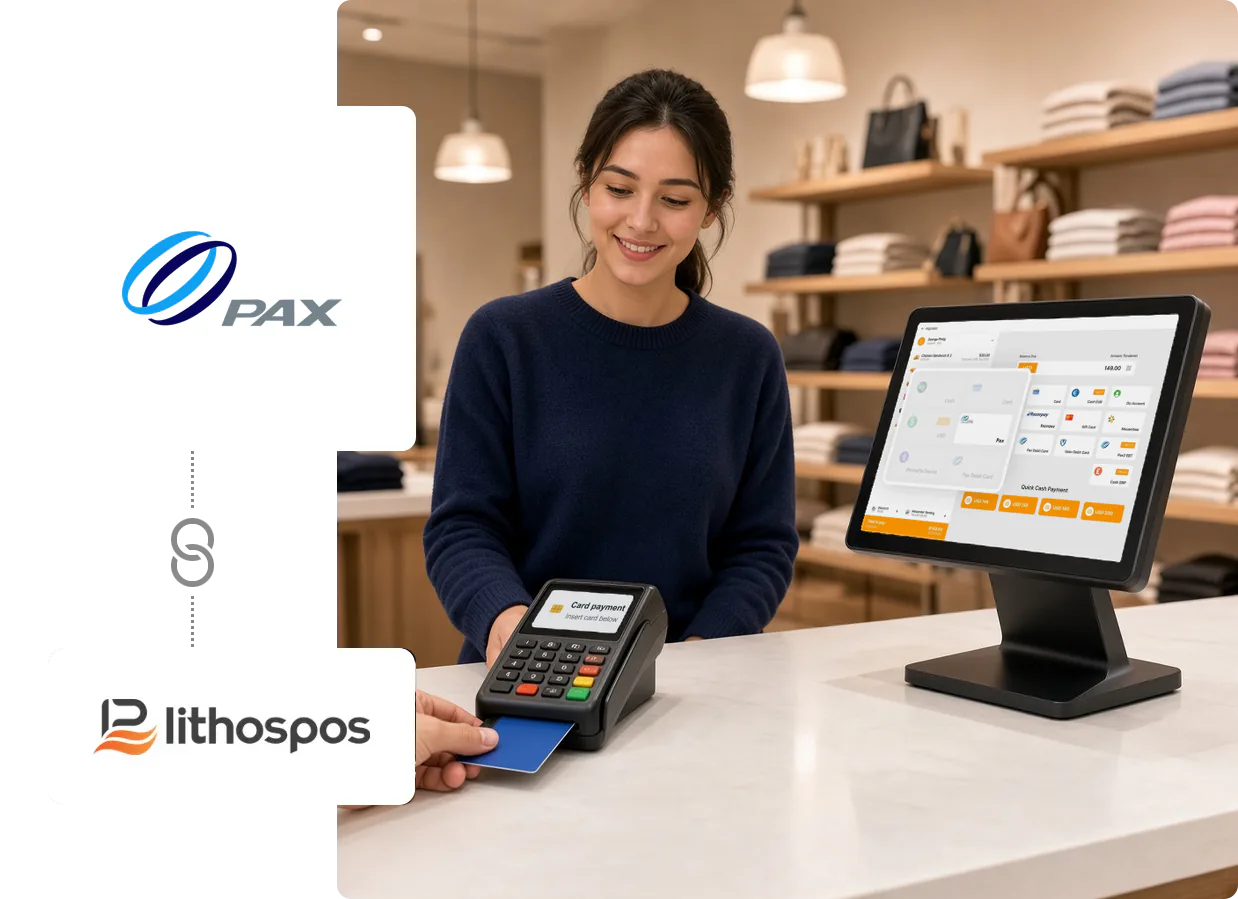
LithosPOS Runs the Bill, PAX Takes the Card
At a PAX-enabled counter, each device has one clear job, so cashiers and customers always know where to look.
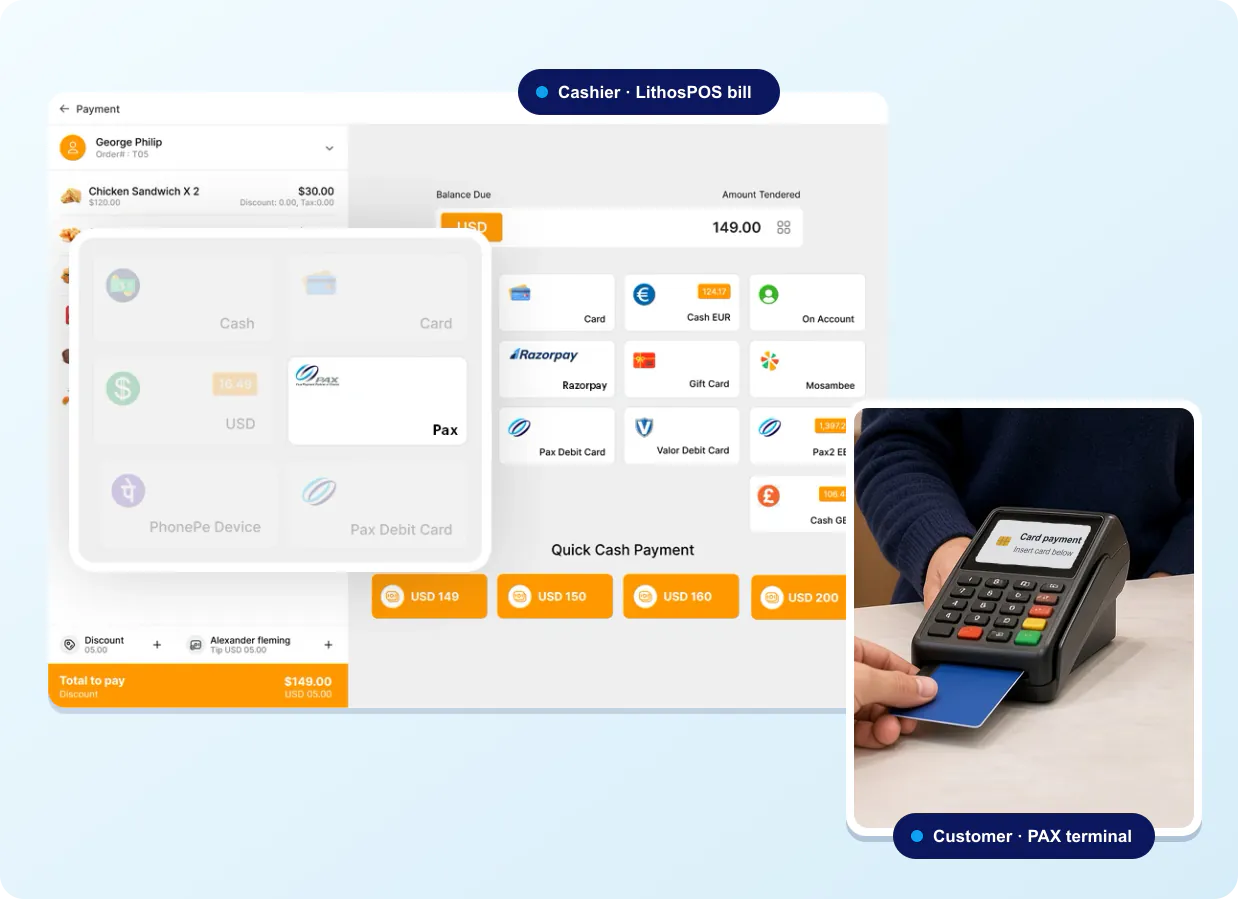
LithosPOS, facing the cashier
Where the order is built and the bill total is worked out.
PAX terminal, facing the customer
Where the customer makes the debit or credit card payment.
Ring up the bill
Add the items to the sale in LithosPOS, the way your team already does.
Select PAX
Choose PAX on the payment screen, shown under the name you gave it in the Back Office.
Customer pays by card
The customer completes the debit or credit card payment on the PAX terminal.
Sale completed
Once the card payment goes through, the sale is completed in LithosPOS.
Why Add PAX to Your LithosPOS Checkout
The card stays in the customer’s hand
The PAX terminal sits on the customer’s side of the counter, so shoppers and guests insert their own card instead of passing it to staff.
Receipts that say how the bill was paid
You choose the receipt name for PAX payments, so every customer receipt shows plainly that the bill was settled through PAX.
Offered only where you have terminals
Pick the stores that show PAX at checkout and switch it off for a location whenever you need to. Other stores carry on with their own payment types.
Your POS stays your POS
Products, prices, staff and stores are still run from LithosPOS. PAX adds a card terminal to the counter without changing how the rest of the business works.
How PAX Fits Different Counters
Restaurants
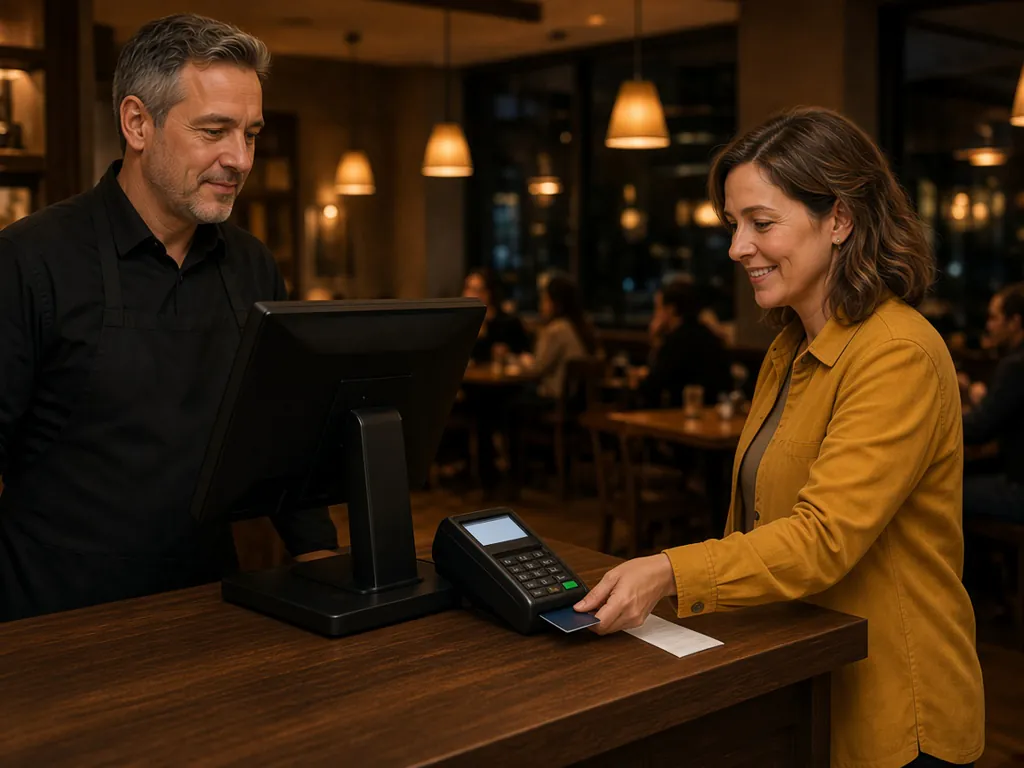
Guests settle up at the cash desk on their way out. The server brings up the table’s bill in LithosPOS and the guest pays it by card on the PAX terminal beside the register.
Explore restaurant POS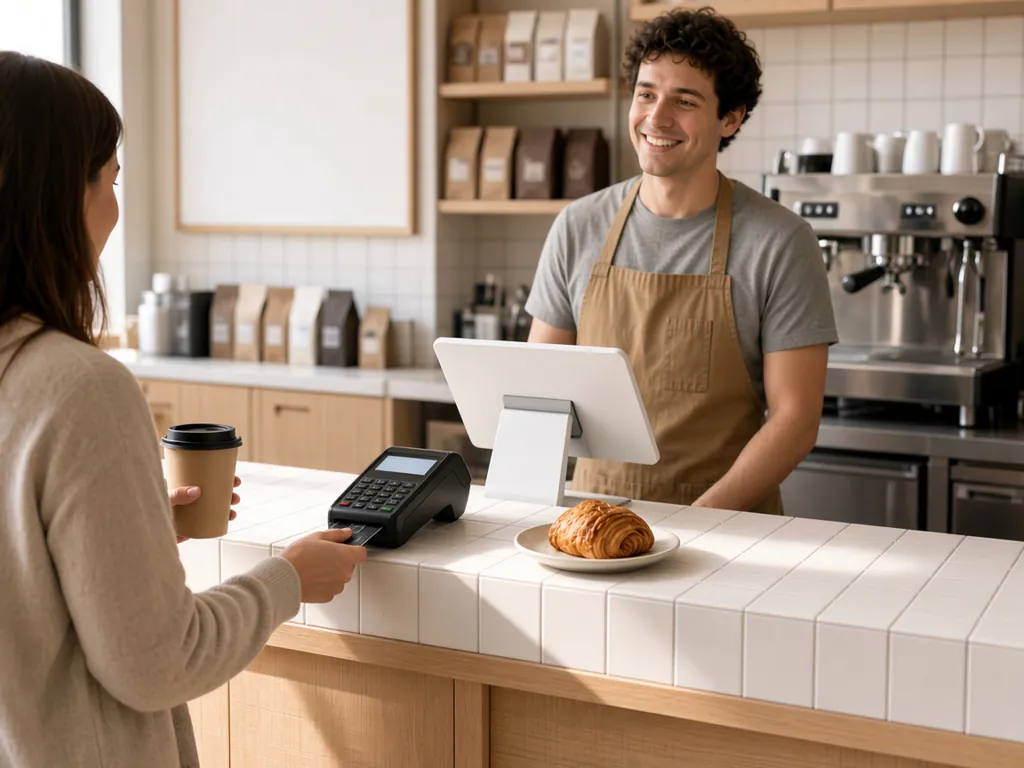
Cafés
A tablet POS facing the barista and a card terminal facing the customer fit side by side on a narrow counter, so a coffee is ordered and paid for in one spot.
Explore café POS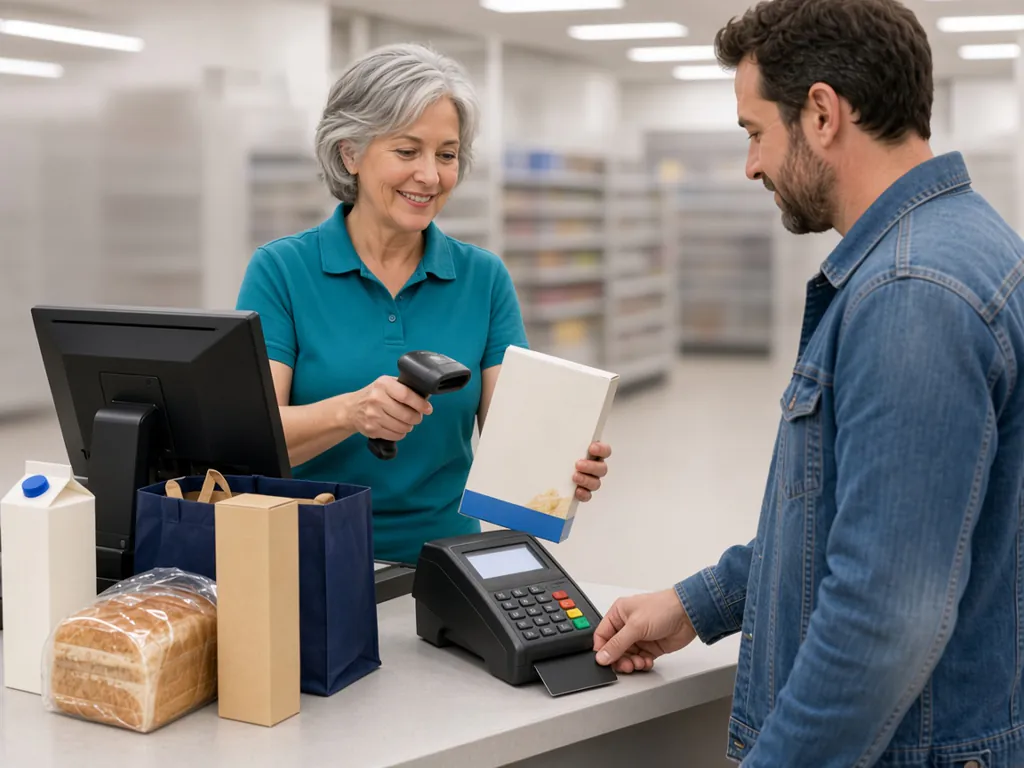
Retail stores
The cashier scans the basket into LithosPOS, and the shopper pays the total by debit or credit card on the PAX terminal at the end of the counter.
Explore retail POSSetup
Set Up in Two Places You Already Use
PAX is configured from the LithosPOS Back Office and then on each POS that takes card payments.
In the Back Office

On the POS
Open the PAX settings on the POS and enter the Device Code that Valor provides for your terminal.
Our team can walk you through both steps during a demo.