

How it works
The Bill Stays on LithosPOS, the Card Payment Happens on Pine Labs
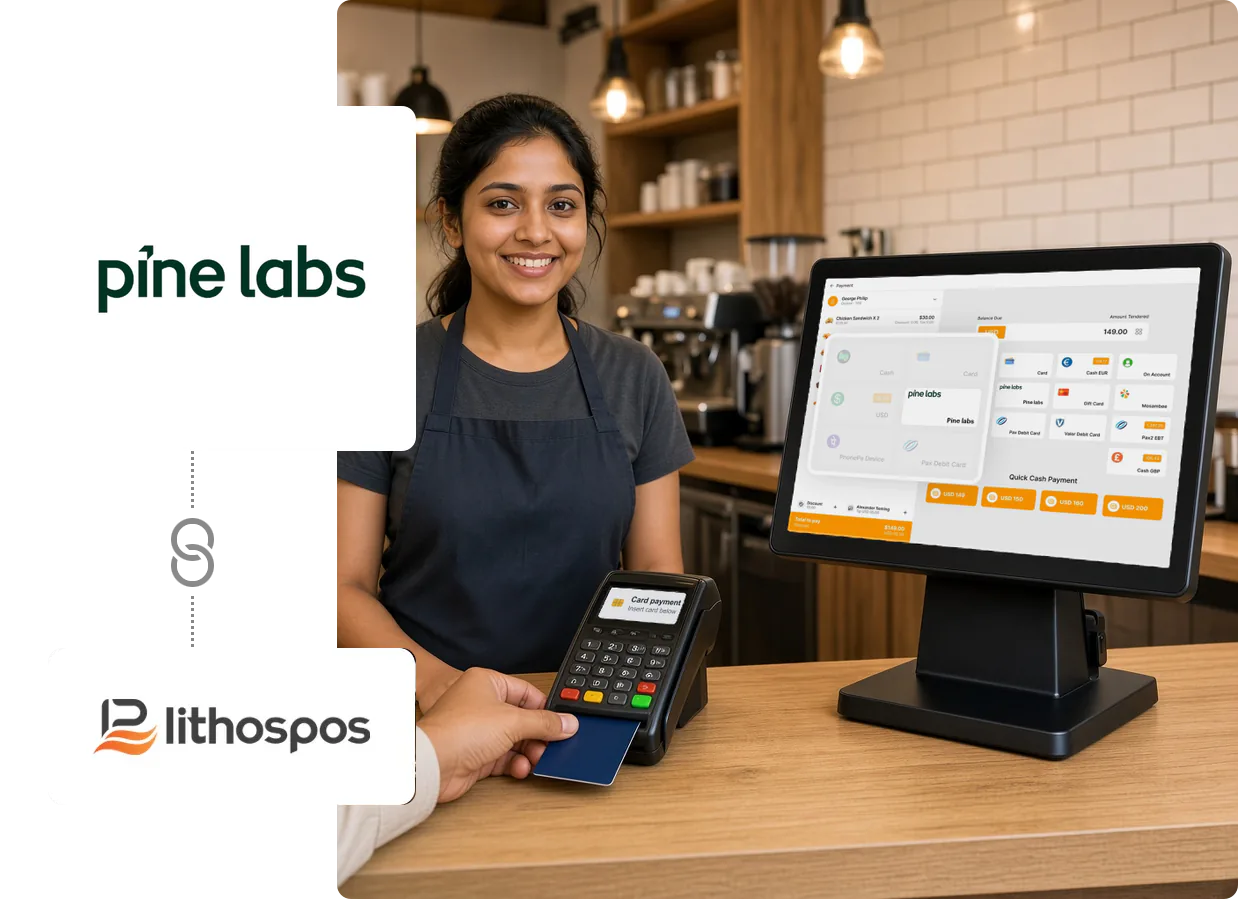
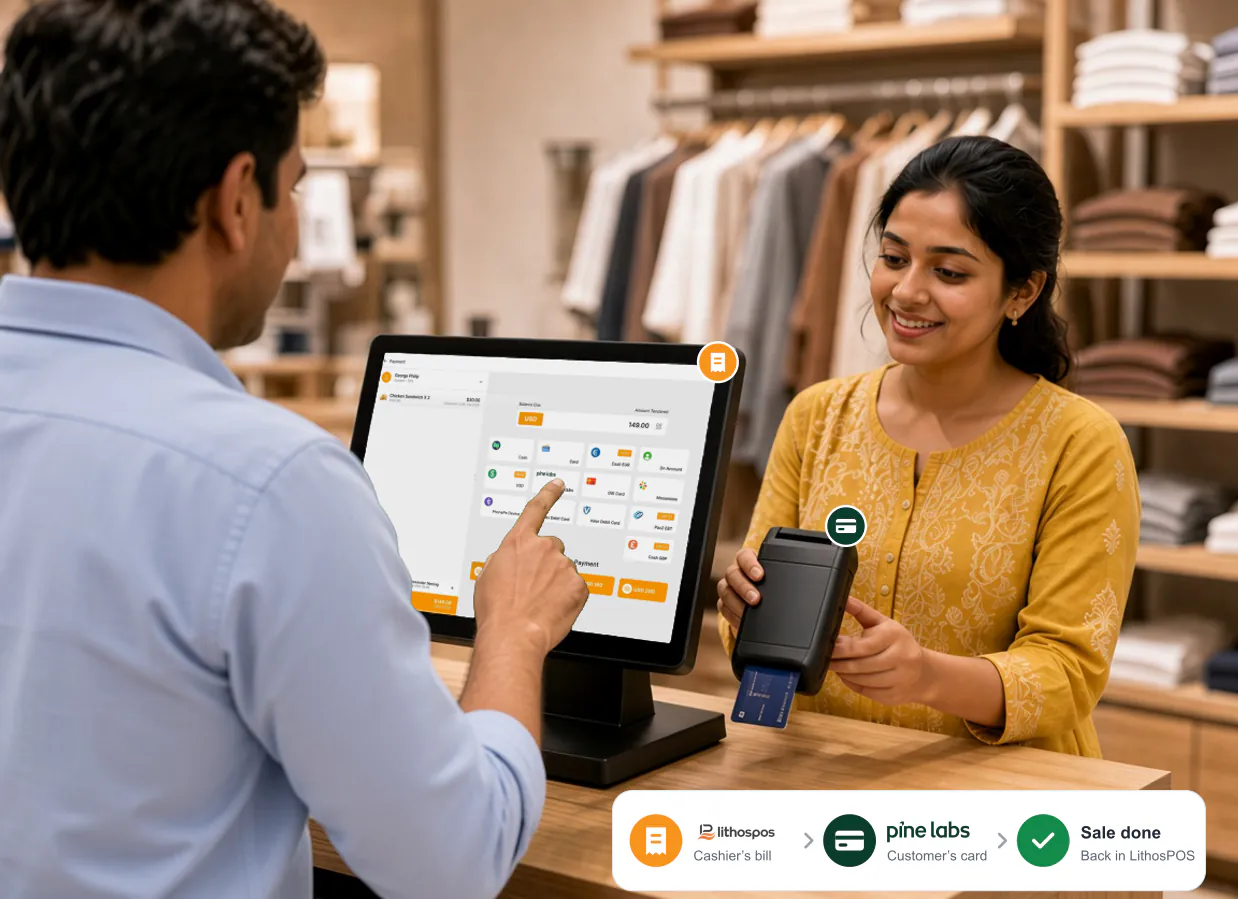
Each device has its own job at the counter. The cashier works on the LithosPOS screen, and the customer uses the Pine Labs terminal to pay.
Prepare the bill in LithosPOS
Add items, discounts and taxes exactly the way your team does today.
Choose Pine Labs on the payment screen
Pine Labs appears as a payment option alongside cash and the other payment types you accept.
The customer pays on the terminal
They insert their debit or credit card and follow the prompts on the Pine Labs terminal.
Complete the sale
Once the card payment has gone through, the cashier completes the sale in LithosPOS and the receipt shows the receipt name you set for Pine Labs.
What Pine Labs Adds to Your LithosPOS Checkout
Billing stays where your team already works
Orders, prices, discounts and bill totals stay in LithosPOS, so your staff don’t need to learn a separate till to take card payments.
Customers handle their own card
The terminal sits within the customer’s reach, so they can insert their debit or credit card and follow the prompts themselves instead of handing the card across the counter.
Each register set up with its own terminal
Every LithosPOS register is configured with the details of the Pine Labs terminal it works with, so a store with several billing counters can pair each POS with the terminal beside it.
Roll it out store by store
Turn Pine Labs on for the stores that have terminals and leave it off everywhere else, so each location only shows the payment types it can take.
One Checkout Setup, Three Kinds of Counter
Restaurants
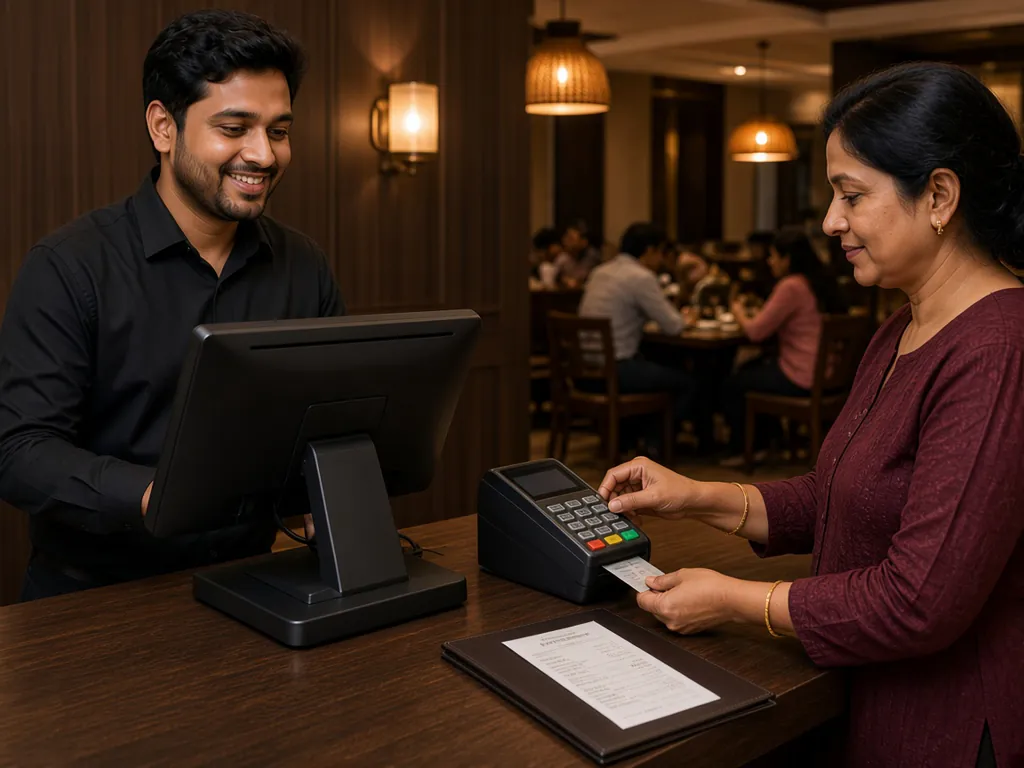
When guests settle up at the cash counter after their meal, the cashier pulls up the table’s order in LithosPOS and the guest pays the bill by card on the terminal.
Explore restaurant POS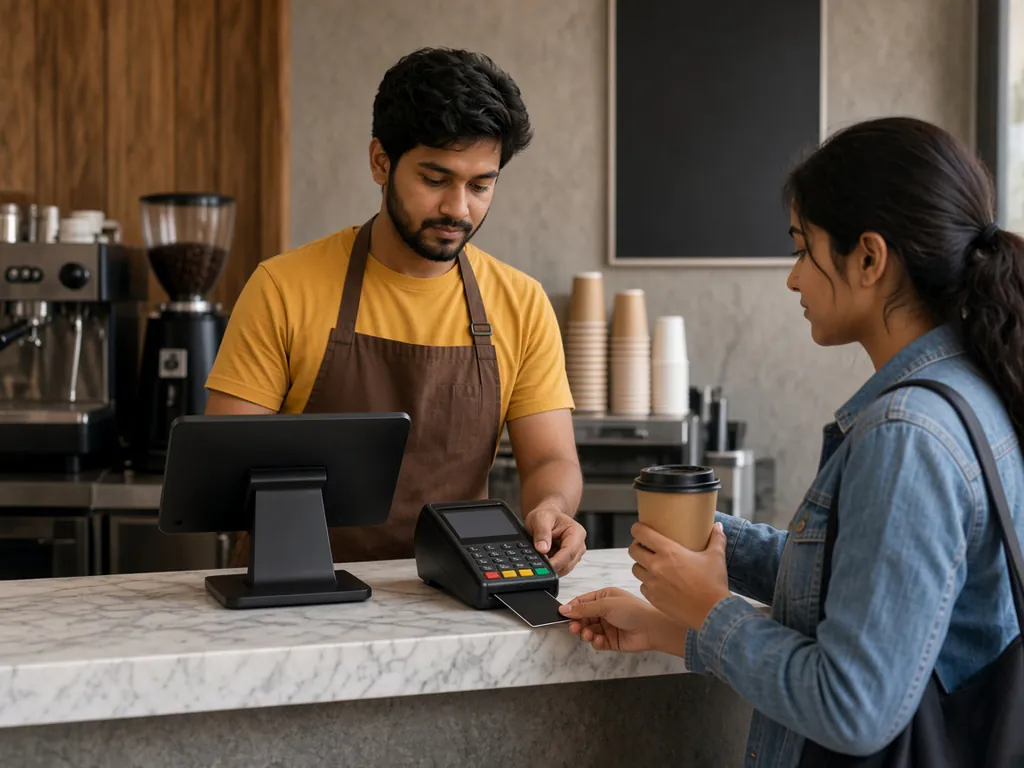
Cafés
Café counters are short on space. The barista’s POS screen and a compact card terminal for the customer sit side by side, so even a single coffee is ordered and paid for at one spot.
Explore café POS
Retail stores
With the bill already rung up in LithosPOS, the cashier can carry on folding and bagging the purchase while the customer completes the card payment on the terminal.
Explore retail POSSetup
Configured Inside the LithosPOS You Already Use
Pine Labs is set up in two familiar places, so there is no separate system for your team to learn.
In the Back Office

In the POS integration settings
For each POS that takes Pine Labs payments, enter the merchant and terminal details from your Pine Labs setup, such as the Merchant ID and Machine ID.
Our team can walk you through these settings during a demo.