
LithosPOS × PAX
Every Payment. One Seamless Checkout.
Connect PAX payment terminals with LithosPOS and make every in-store transaction simpler, faster and more accurate.
Bring your billing and card payments together. With LithosPOS and PAX integration, your team can manage sales through one connected checkout experience while giving customers a convenient way to pay.
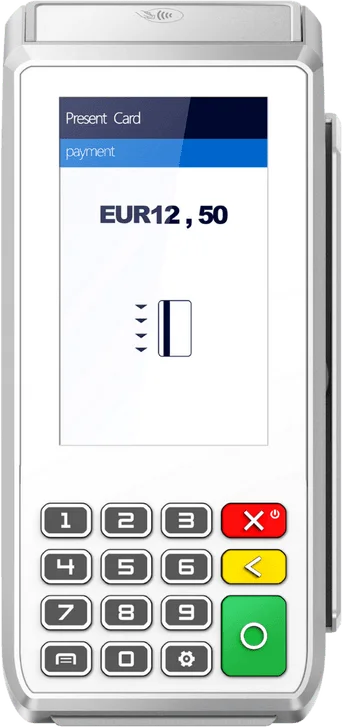
 LithosPOS billPAX payment
Why integrate
Your POS and Payment Terminal. Finally Working Together.
Separate billing and payment processes can slow down checkout and create unnecessary manual work. LithosPOS connects your in-store billing workflow with PAX payment terminals, helping your team handle card payments with less manual intervention.
Faster Checkout
Move from billing to payment through a connected checkout workflow.
Fewer Manual Errors
Reduce the need to manually enter transaction amounts into separate payment devices.
Better Payment Experience
Give customers convenient tap, chip and swipe payment options through supported PAX terminals.
Simplified Store Operations
Bring billing and payment collection into a more organised in-store process.
How it works
From Billing to Payment. A Connected Experience.
LithosPOS manages the sale while the connected PAX terminal handles the in-person card payment.
- 01
Create the Bill
The cashier adds products or services in LithosPOS and prepares the customer bill.
- 02
Process the Payment
Select PAX as the payment method in the LithosPOS checkout workflow and use the connected terminal for the supported payment process.
- 03
Complete the Sale
Complete the payment process and maintain an organised sales record through LithosPOS.
LithosPOS panels are illustrations with sample data.
For restaurants
Keep Your Restaurant Moving. Even at Checkout.
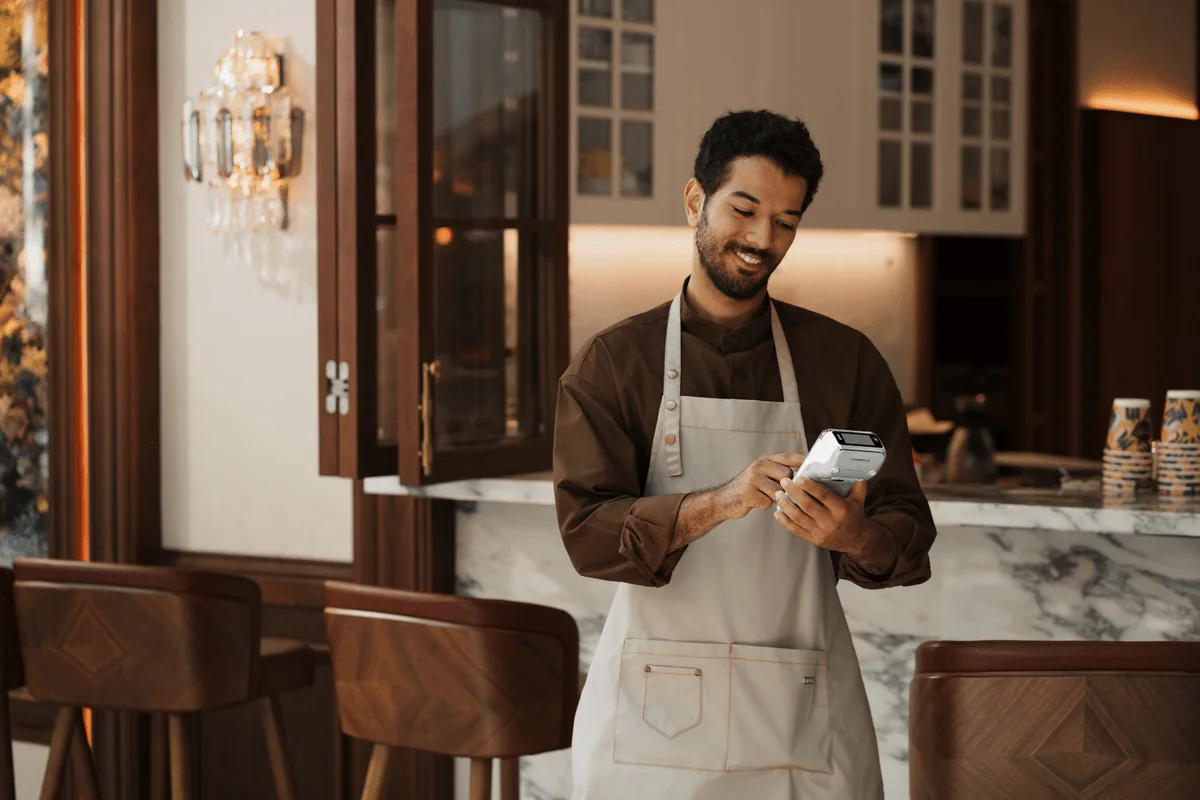
When the restaurant gets busy, every second matters. Give your staff a simpler way to handle customer billing and card payments.
Faster Table Payments
Help your staff move from preparing a customer bill to the payment process with fewer manual steps.
A Better Guest Experience
Give guests convenient card payment options at checkout.
Support Busy Service Hours
Reduce unnecessary cashier handling during breakfast, lunch and dinner rushes.
Simplify Your Restaurant Workflow
Bring payment collection into the same operational environment used for restaurant billing.
Suitable for Different Restaurant Formats
Explore LithosPOS for restaurantsFor retail
Make Every Retail Checkout More Efficient.
From a single purchase to a busy retail counter, bring billing and card payment into a more connected checkout experience.
Less Manual Payment Handling
Reduce the need to re-enter bill amounts into a separate payment device.
Convenient Card Payments
Offer supported tap, chip and swipe payment methods.
A Smoother Checkout
Help your team manage customer billing and payment collection through a more organised workflow.
Better Operational Accuracy
Reduce manual handling and the risk of payment-entry mistakes.

Built for Many Retail Categories
Explore LithosPOS for retailBetter together
Powerful POS Software. Trusted Payment Hardware.
LithosPOS runs your billing and business operations. PAX makes the payment terminal your customers use.
LithosPOS
The software
- Smart billing and sales management
- Product and service management
- Customer management
- Discounts and flexible payment types
- Sales reports and business insights
- Multi-store management capabilities
PAX Technology
The hardware
- Modern payment terminal hardware
- Contactless payment capabilities
- Chip and PIN payment support
- Portable and countertop device options
- Manufacturer-designed payment technology
One Connected Checkout Experience.
PAX and the PAX logo are trademarks of PAX Technology; product images are courtesy of PAX Technology.
LithosPOS on PAX hardware
Already Have a PAX Device? Put LithosPOS to Work on It.
PAX gives you reliable hardware. LithosPOS gives it a complete point-of-sale to run, from the menu and offers to taxes, payment and reports. See how it looks on each device.
One app for the whole sale
Billing, discounts, taxes and PAX card payment run from the same LithosPOS screen.
Staff learn it in minutes
A photo menu with category tabs lets new cashiers find items fast, with no training manual.
Offers and taxes apply themselves
Buy 1 get 1 offers, discounts and VAT or GST are worked out on every line, so bills come out right.
Every store and every device in view
Sales reports and multi-store management cover each PAX device you run, from one back office.
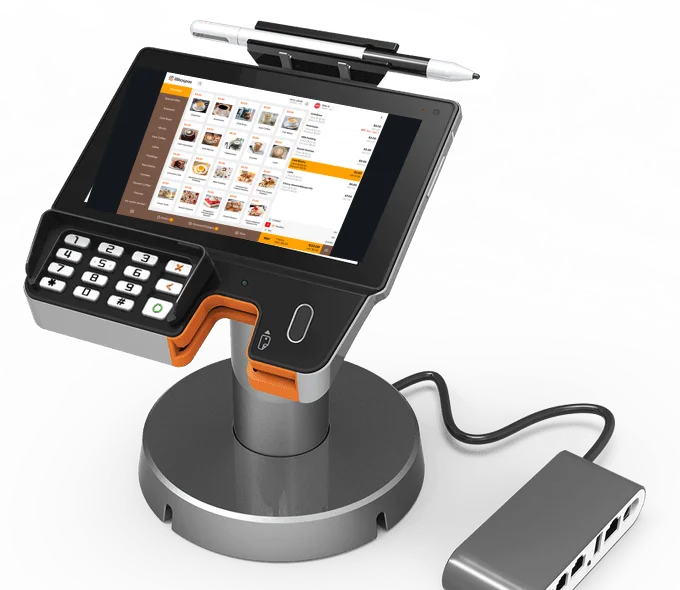
PAX Aries 6
Cafés and quick-service counters
Serve the next customer while the last one is still paying
Put your full photo menu on the Aries 6 and take the order, apply the offer and collect the card payment on one device.
- Photo menu and category tabs keep the queue moving
- Dine-in tables and delivery-app orders, such as Zomato, sit in the same order screen
- Choose PAX at checkout and the card payment starts from the bill
Best for: Coffee shops, bakeries and food counters
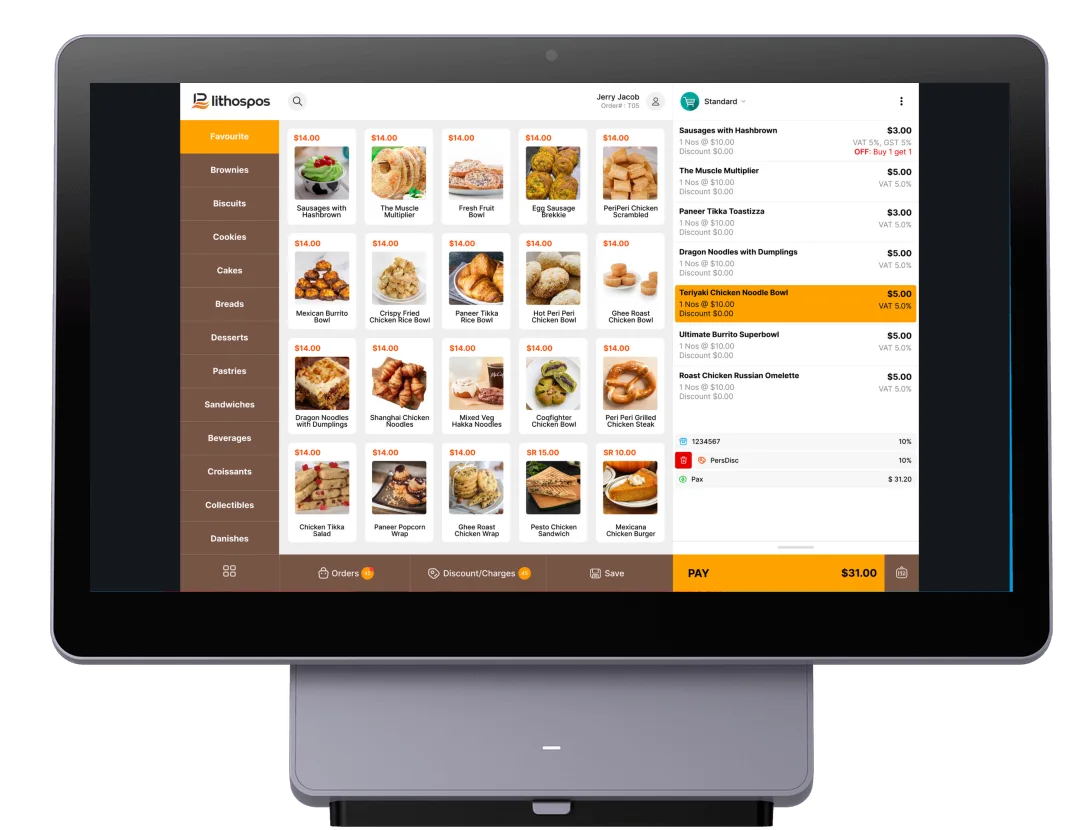
PAX Workstation L1400
Bakeries and food retail
Right tax, right offer, right total on every bill
The 14" Workstation gives your cashier a clear view of the whole order, and LithosPOS does the maths.
- VAT or GST shows on each line, so receipts match your tax setup
- Offers like Buy 1 get 1 apply on their own, with no manual discounting
- A large PAY button shows the live total, ready for the connected PAX payment tablet
Best for: Bakeries, sweet shops and grocery counters
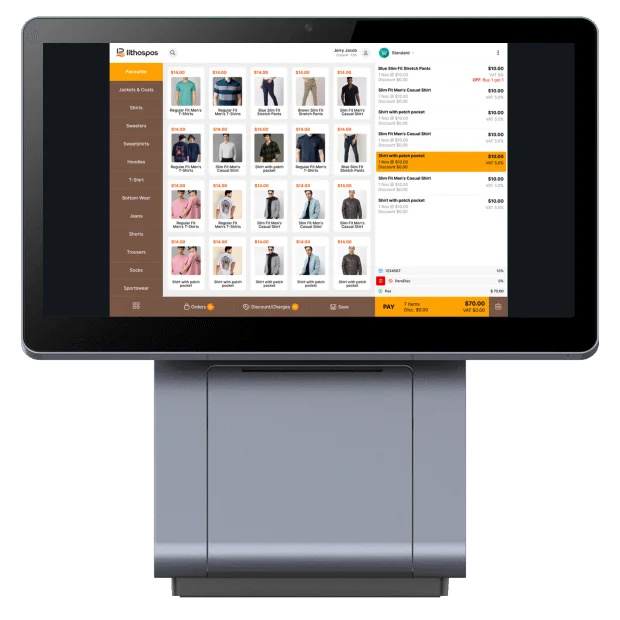
PAX EPOS Tower
Fashion and apparel stores
Sell more of the catalogue, from the first tap to the receipt
Show your range with product photos on the Tower, and let LithosPOS handle the discounts and the total.
- Browse by Jackets, Shirts, Jeans or any category you create
- Item and bill discounts, and your offers, in a couple of taps
- Item count, discount and VAT beside the total, so there are no surprises at payment
Best for: Boutiques, apparel chains and multi-brand stores
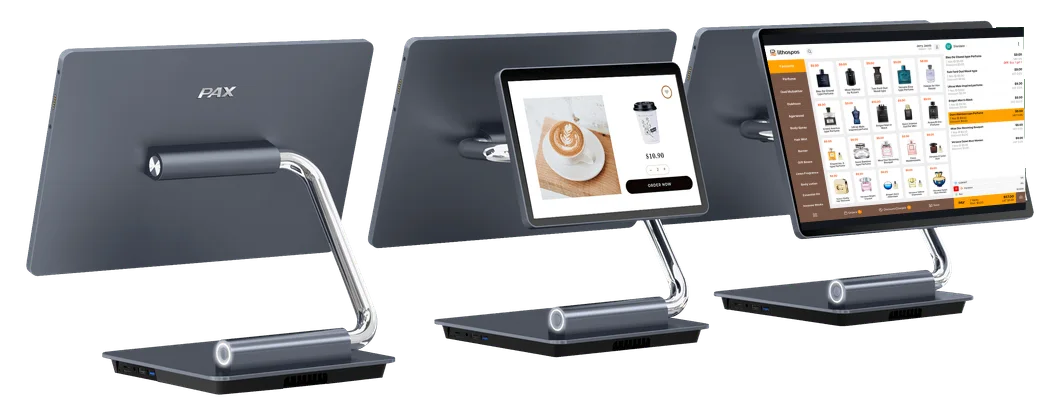
PAX Litchi Pro
Perfume, gift and specialty shops
A big catalogue made easy to browse
The 15.6" Litchi Pro shows more products at a glance, so staff find the right bottle quickly and customers get served faster.
- Dozens of products with photos on one screen, sorted into categories
- Personal discounts and charges in a single tap
- Sales reports show which products and categories sell best
Best for: Perfume stores, gift shops and specialty retail
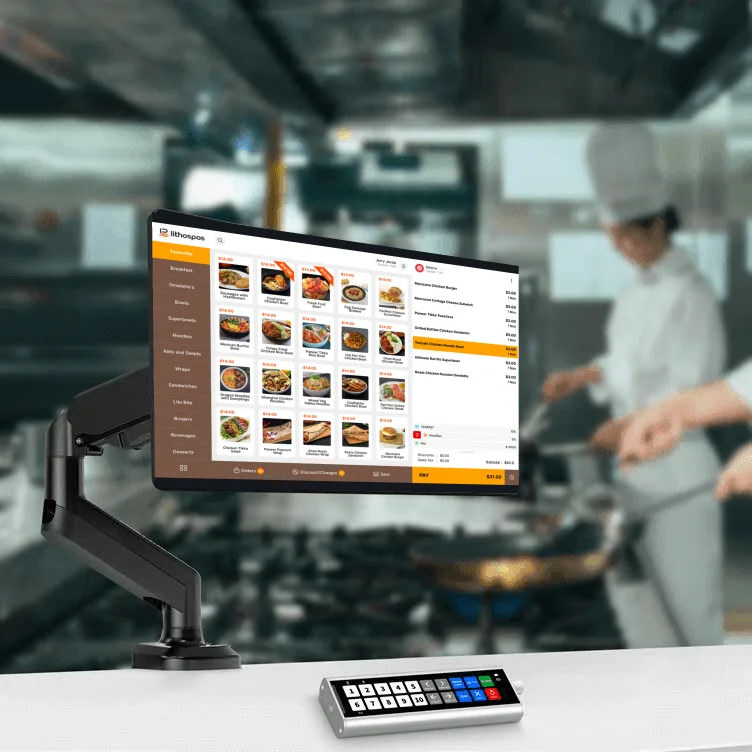
PAX Kitchen Display
Restaurants and dine-in
Orders by table, sold-out dishes flagged, nothing lost
Run dine-in on LithosPOS and keep your kitchen display in the same flow, so what the floor sells is what the kitchen sees.
- Each order carries its table number from the first item to the bill
- Mark dishes as out of stock, so staff stop selling what is gone
- Save, hold and reopen orders from the order list during a rush
Best for: Restaurants, cloud kitchens and food courts
See LithosPOS Kitchen DisplayScreens are LithosPOS screenshots with sample data, shown on PAX product photos courtesy of PAX Technology. Device availability, configuration and supported payment methods depend on your market and payment provider.
Payment experience
Give Customers More Convenient Ways to Pay.
Contactless / Tap
Customers tap their card or device on the terminal.
Chip and PIN
Customers insert their card and confirm with a PIN.
Magnetic stripe / Swipe
Customers swipe their card on the terminal.
These are capabilities of the relevant PAX hardware and payment provider configuration. Acceptance of specific card networks, wallets, currencies or payment methods depends on the terminal model, payment provider, acquiring configuration and market.
Setup
Getting Started Is Simpler Than You Think.
The setup follows the documented LithosPOS process: configure PAX in the Back Office, sync your POS, then connect it on the POS.
- 01
Configure PAX in the Back Office
Log in to the LithosPOS Back Office and go to Settings → Payment Types.
- 02
Add a new payment type
Choose PAX as the payment method, enter the display and receipt names, and activate it for the required stores.
- 03
Synchronise your POS
Save the payment type and sync your POS so the configured payment option is available at checkout.
- 04
Configure the PAX connection
On the POS, open Settings → PAX and enter the Device Code provided through the supported setup process.
- 05
Start processing supported in-store payments
Select PAX on the payment screen and take card payments on the connected terminal.
FAQ
Frequently Asked Questions
Also see LithosPOS payment integrations, POS hardware and reports and analytics.
Ready to Make Every Checkout Smarter?
Connect the power of LithosPOS with PAX payment technology and create a smoother payment experience for your customers and staff.